Connecting to the University of Guelph (UofG) eduroam network on Ubuntu 24.04 requires selecting the right CA certificate in GNOME settings. Without it, authentication fails silently.
CA Certificate Verification
Certificate Selection
You must select DigiCert_Global_Root_G2.pem for the CA certificate to authenticate with UofG CCS servers. On Ubuntu 24.04, these System CA certificates are located in the
You must select DigiCert_Global_Root_G2.pem for the CA certificate to authenticate with UofG CCS servers. On Ubuntu 24.04, these System CA certificates are located in the
/etc/ssl/certs directory.
Note: If your certificate doesn't work, try this: University_of_Guelph_Server_AAA_Root_CA.pem.
ant@alderlakel13:~$ ls /etc/ssl/certs/ | grep DigiCert
DigiCert_Global_Root_CA.pem
DigiCert_Global_Root_G2.pem
DigiCert_Global_Root_G3.pem
Network Configuration
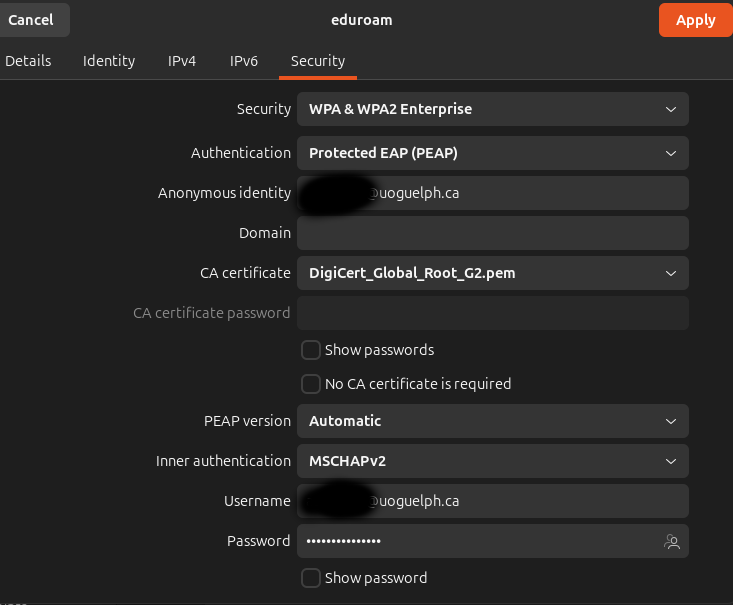
You will need to enter your full UofG central login ID (e.g., [email protected]) as both the Username and the Anonymous Identity.
Your password is your standard University of Guelph central login password.
Eduroam WiFi Connection Settings (GNOME / Network Manager)
Security: WPA & WPA2 Enterprise
Authentication: Protected EAP (PEAP)
Anonymous identity: [your_id]@uoguelph.ca
Domain: [leave empty]
CA certificate: DigiCert_Global_Root_G2.pem
CA certificate password: [leave empty]
PEAP version: Automatic
Inner authentication: MSCHAPv2
Username: [your_id]@uoguelph.ca
Password: [your_central_login_password]