
This is a complete guide on how to connect to the University of Guelph (UofG) eduroam wireless network on Ubuntu 24.04 LTS (Linux) using the GNOME desktop environment in 2026.
Crucial Step: You must select DigiCert_Global_Root_G2.pem for the CA certificate to authenticate with UofG CCS servers.
On Ubuntu 24.04, these System CA certificates are located in the /etc/ssl/certs directory.
ant@alderlakel13:~$ ls /etc/ssl/certs/ | grep DigiCert
DigiCert_Assured_ID_Root_CA.pem
DigiCert_Assured_ID_Root_G2.pem
DigiCert_Assured_ID_Root_G3.pem
DigiCert_Global_Root_CA.pem
DigiCert_Global_Root_G2.pem
DigiCert_Global_Root_G3.pem
DigiCert_High_Assurance_EV_Root_CA.pem
DigiCert_TLS_ECC_P384_Root_G5.pem
DigiCert_TLS_RSA4096_Root_G5.pem
DigiCert_Trusted_Root_G4.pem
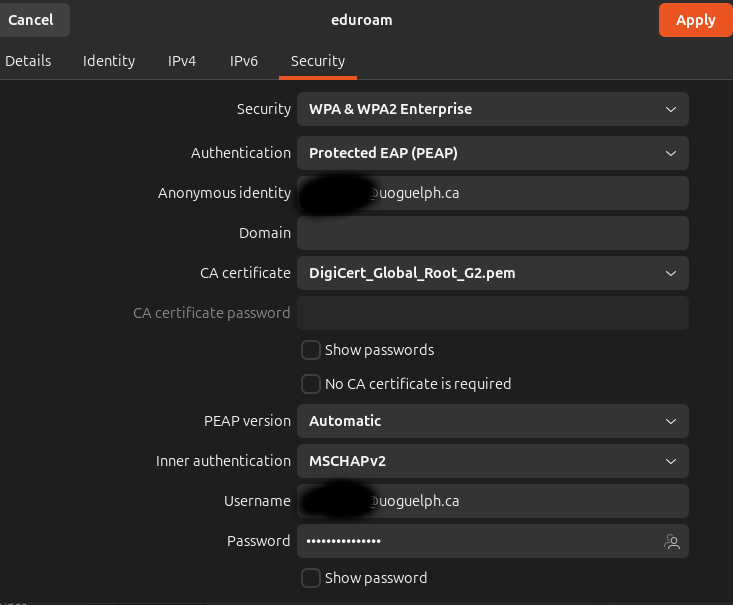
You will need to enter your full UofG central login ID (e.g., [email protected]) as both the Username and the Anonymous Identity.
Your password is your standard University of Guelph central login password.
Eduroam WiFi Connection Settings (GNOME / Network Manager)
Security: WPA & WPA2 Enterprise
Authentication: Protected EAP (PEAP)
Anonymous identity: [your_id]@uoguelph.ca
Domain: [leave empty]
CA certificate: DigiCert_Global_Root_G2.pem
CA certificate password: [leave empty]
PEAP version: Automatic
Inner authentication: MSCHAPv2
Username: [your_id]@uoguelph.ca
Password: [your_central_login_password]